Receiver settings
For ATraq Desktop users, this is kind of equivalent of Advanced Settings. But there are so much more that we can do on this screen. Firstly please note that you can stop the Master Communicator by clicking the pause button in the top right corner. This will stop the generation of all system generated signals and alarms.
Advanced settings
Time zones are used in ARC's that have accounts in multiple regions that span over multiple time zones. So if I have a disarm time of 18:00, I have to know that it's their 18:00 and not our time. So we can set the time for the time zones that we are covering. As most companies operate on only one time zone, you don't have to choose the Multi time zone switch.

The next switch is Accept all support panel protocols. When we add a protocol to an alarm panel and then choose this protocol in the Site Accounts>Zones tab, this means that the system is to only receive this protocol. If any other protocol is received, then it is displayed as different protocol in the alarm window. If you would like for the Communicator to evaluate all protocols of that panel then you turn this switch on.
The next switch is the Log all unassigned partitions. If a site is added but the partition has been forgotten, although ATraq will create an alarm mentioning that the received site is not valid, by turnin gon this switch you can have these logged into another list.
The Log all processed signals switch is a log for all signals that have been parsed by the Communicator. After the signal is processed by the Communicator it will be stored in a seperate log.
The Log all raw signals switch is to log exactly how they are communicated from the receiver. The logs are stored seperately.
The last switch is the Notification of all Communicator engine problems. When you turn this on a button named settings will appear. Click to button to set the notifications in the modal that pops up.
Communicator error notifications
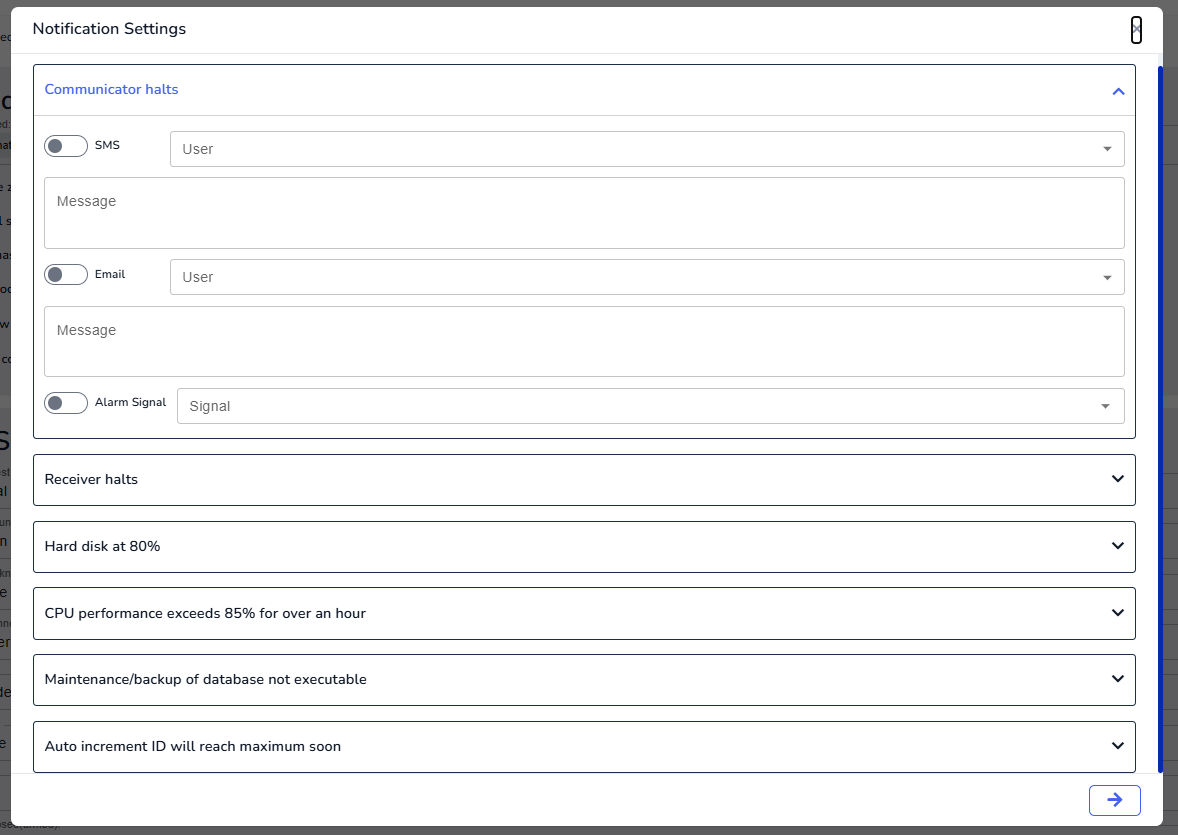
In this modal, there are 7 notifications that can be set. These are:
- Communicator crash
- Receiver halts
- Hard disk nearing 80% full capacity
- CPU working at 85% capacity for over an hour
- Maintenance/backup schedule not executed
- Auto increment integer ID in SQL is at critical value
- Internet latency is passing 200ms.
For each of these issues, we have the possibility to send an SMS message to multiple contacts in the ARC. We choose the users, and the SMS message. We do the same for creating notifications via email. Again, choose the users and then write the Email message accompanying the fault. Last but not least, we assign the signal to be displayed on the operator alarm window by choosing the signal type.
Once these settings are complete, don't forget to hit the save button.
At any stage if you want to stop these notifications, just turn off the the notification switch under Advanced Settings
Default signals
The following list of default signals that are generally triggered by ATraq Master service must all be assigned a signal type.
- When there is no test signal from the panel for a spedified time
- When the signal is unkown
- When the site is unknown
- Incoming signal cannot be paired with the account due to missing partition
- Site made active
- Site made inactive
- Site open
- When the site is closed (armed)
- When the site is opened (disarmed)
- When there is no data in the signal
- When the CallerID is different from the stored phone number
- When the IP address has changed
- When a site has been left disarmed too long
- When an arm is late
- When a disarm is late
- When a site has disarmed early
- When a site has armed early
- When a site is disarmed on a holiday
- When a site is armed on a holiday
- When a special situation alarm is triggered
- When a technical service has started their work
- When a technical service has ended their work
- Closing postponed
- Test signal will temporarily not be monitored
- When a site doesn't have a defined protocol
Make sure you click on the save button once you make any changes.